How to Use TimeSpanCalc
TimeSpanCalc works like a physical calculator — tap the keys, read the result. No typing, no forms, no account required. There are three modes, each designed for a different kind of time question. Press the MODE key (bottom-left of the keypad) to cycle between them.
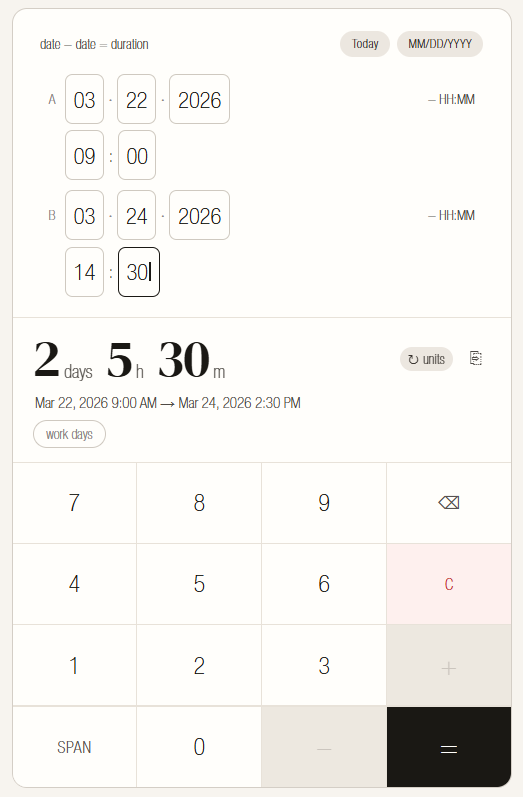
SPAN — How many days between two dates?
date − date = duration
Use this when you have two dates and want to know the distance between them.
Entering a date
Each date has three slots: month · day · year (or your local format). Tap the keypad digits to fill them. The calculator advances to the next slot automatically when the current one is full.
Smart shortcuts
Type 3 for March — the calculator auto-advances because no month begins with 3 followed by another digit. Type 5 for May — same thing, instant advance.
Tap any filled slot to edit it. The first key you press replaces the old value immediately.
Reading the result
The result appears live as you type. Tap it to cycle between three views: total days / total weeks / years + months + days.
Work days
Tap the work days chip below the result to switch from calendar days to a Mon–Fri count, skipping weekends.
Add time of day
Tap + HH:MM on either date field to add hours and minutes. Useful for calculating exact hours between two moments — a work shift, a flight, a timer.
Common uses
- How old am I exactly? — Enter your birth date as A, tap Today for B
- How many days until my trip? — Enter today as A, your departure date as B
- How long have we been together? — Enter your start date as A, today as B
- How many weeks pregnant? — Enter the first day of your last period as A, today as B
- How many business days until the deadline? — Enter dates, then tap work days
- How long ago was a date? — Enter that date as A, today as B
LAND — What date is N days from now?
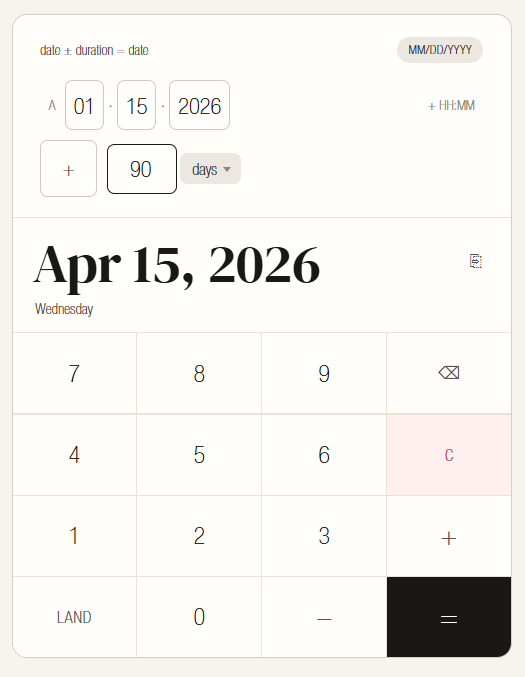
date ± duration = date
Use this when you have a start date and want to find a future or past date after adding or subtracting a duration.
Entering a calculation
1. Enter the start date in field A. Tap Today to fill today automatically.
2. Tap + or − to set the direction (the keypad + and − keys also toggle this).
3. Enter a number, then tap the unit button to choose: minutes / hours / days / weeks / months / years.
Reading the result
The landing date is shown in full — e.g., June 18, 2026 — with the day name below it (Wednesday).
Common uses
- When does my 90-day visa expire? — Enter entry date, add 90 days
- When is my invoice due? — Enter invoice date, add 30 days (Net-30)
- What is my last day of work? — Enter resignation date, add 2 weeks
- When can I restart exercise after surgery? — Enter surgery date, add 4 weeks
- When does my 18-month GIC mature? — Enter deposit date, add 18 months
- When did 100 days ago fall? — Enter today, subtract 100 days
- When does my lease expire? — Enter start date, add 12 months
- What is my probation end date? — Enter start date, add 3 months
TOTAL — What is the combined duration?
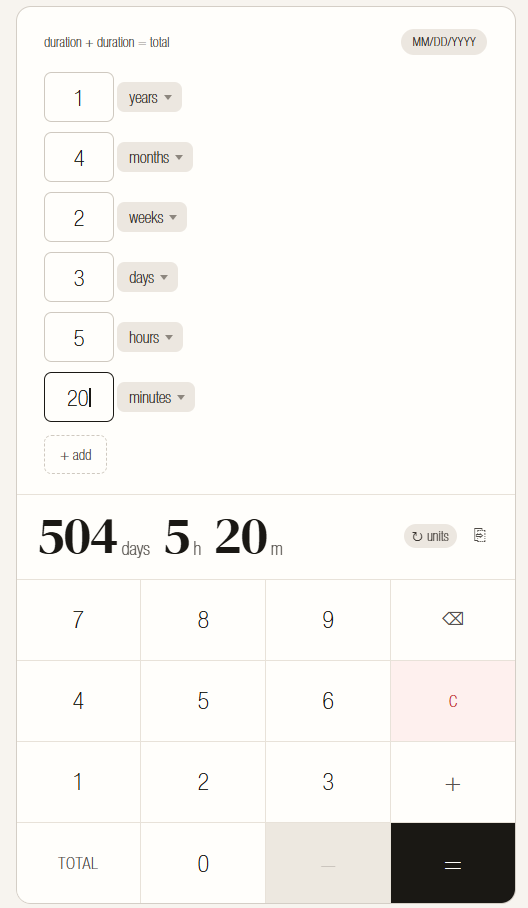
duration + duration = total
Use this when you have several time spans and want to add them together into a single total.
Entering durations
Each row takes a number and a unit. Tap + add to add more rows (up to 8). Mix units freely — hours in one row, days in another.
Reading the result
The total appears live. Tap it to cycle between different unit representations.
Common uses
- Total hours worked this week — one row per day: 7h, 6.5h, 8h…
- Total study time this weekend — 45 min + 1 hr 20 min + 2 hr
- Total travel time — 2h flight + 3h layover + 9h flight
- How long did the project take across multiple sessions?
Tips & Shortcuts
Date format
Tap the format chip (top right of the display) to switch between MM/DD/YYYY, DD/MM/YYYY, and YYYY/MM/DD. Your choice is saved automatically and remembered on your next visit.
Today shortcut
When a date field is active, the Today chip appears at the top right of the display. Tap it to fill that field with today's date instantly.
Copy result
Tap ⎘ to copy the result as plain text to your clipboard. The icon shows ✓ briefly to confirm the copy succeeded.
Clear all
The C key clears all fields in the current mode instantly. No confirmation.
Backspace
The ⌫ key deletes the last digit. Press it again on an empty slot to step back to the previous slot and delete its last digit.
Keyboard (desktop)
Number keys 0–9 type digits. Backspace deletes. Escape clears all. Enter recalculates. Tab advances to the next field.
Dark mode
TimeSpanCalc automatically follows your system's light or dark preference. No manual toggle needed.
Add to home screen
TimeSpanCalc works as a Progressive Web App. On mobile, use your browser's "Add to Home Screen" option to save it as an icon on your device — it will open full-screen, like a native app, with no browser chrome.
Results are for reference only. Verify critical dates — especially legal, financial, or medical deadlines — through official sources or a qualified professional.